
Last updated: April 10, 2025
A theme is a set of templates, modules, global content, and style settings that can be used to create a website. Themes can be downloaded from the Asset Marketplace, while CMS Hub accounts will also have access to default HubSpot themes. You can edit pages using a theme with the drag and drop content editor and set blog templates to use a theme in your blog settings.
Understand themes
A theme is a set of files for your website, including:
- Coded templates: a set of templates for your website, including a homepage, about page, landing page, and blog templates. These templates are custom coded by a developer, but the content and layout can be customized in the drag and drop content editor.
- Modules: a set of unique theme modules you can add to content using that theme.
- Global content: content repeated on multiple pages, such as a website header or footer. You can edit global content directly from the drag and drop page editor.
- Theme settings: style settings for templates using a theme, including fonts, spacing, and colors.
Use an active theme
You can set an active theme to display that theme's pages as the default options for newly created pages. Setting or changing and active theme will not change the theme used for existing content.
Set an active theme
-
Navigate to your content:
- Website Pages: In your HubSpot account, navigate to Content > Website Pages.
- Landing Pages: In your HubSpot account, navigate to Content > Landing Pages.
- In the top right, click the Create dropdown menu and select Website page or Landing page.
- In the dialog box, enter a page name, then click Create page.
- On the theme selection screen, select a theme. In the top right, click Preview to preview the theme or Select and continue to set the theme as active.

Switch to a different active theme
-
Navigate to your content:
- Website Pages: In your HubSpot account, navigate to Content > Website Pages.
- Landing Pages: In your HubSpot account, navigate to Content > Landing Pages.
- In the top right, click the Create dropdown menu and select Website page or Landing page.
- In the dialog box, enter a page name, then click Create page.
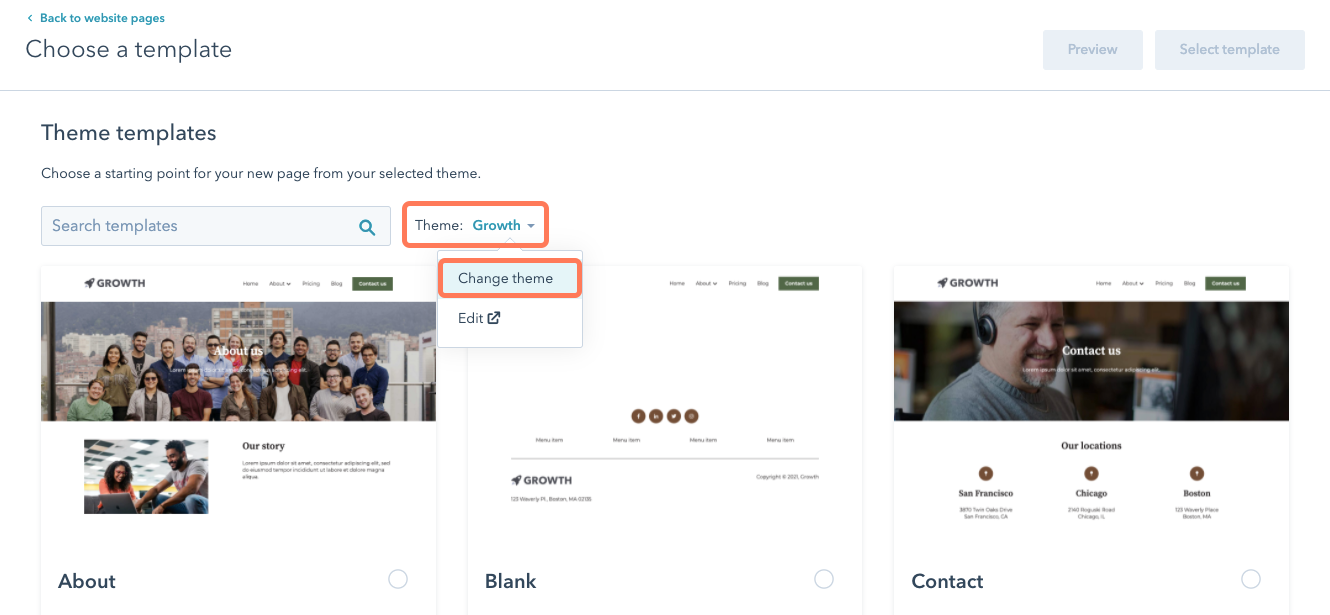
- On the template selection screen, click the Theme dropdown menu and select Change theme.
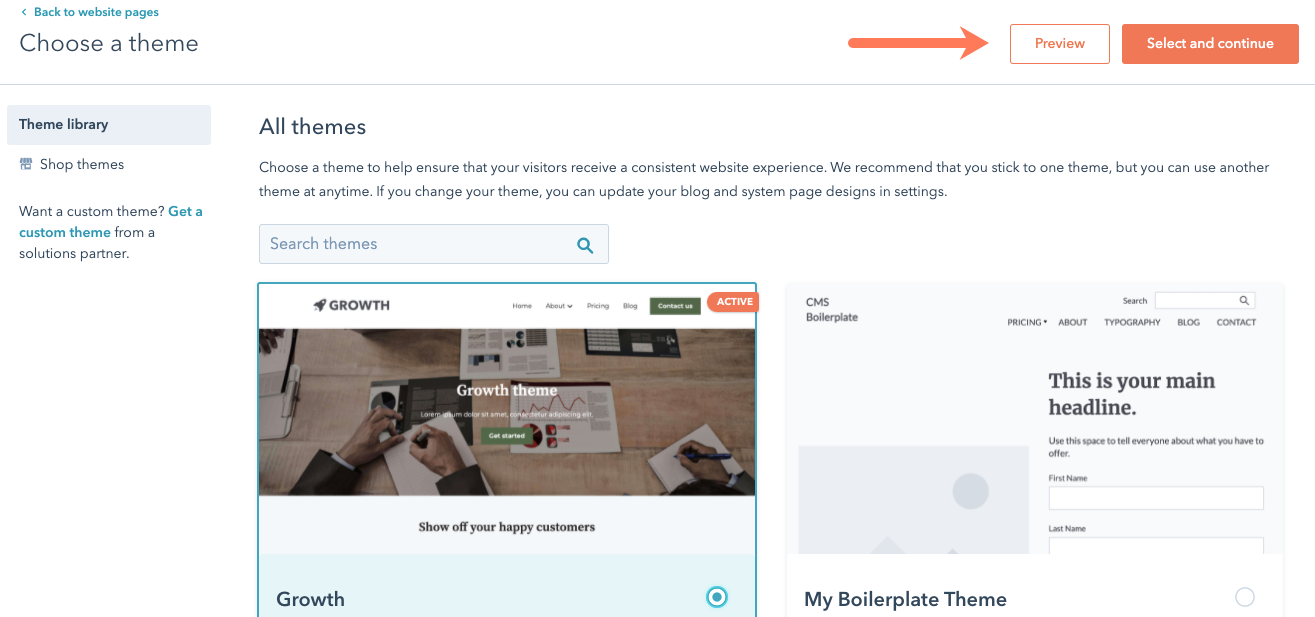
- On the theme selection screen, select a theme. In the top right, click Preview to preview the theme or Select and continue to set the theme as active.
Create a page using a theme
-
Navigate to your content:
- Website Pages: In your HubSpot account, navigate to Content > Website Pages.
- Landing Pages: In your HubSpot account, navigate to Content > Landing Pages.
- In the top right, click the Create dropdown menu and select Website page or Landing page.
- In the dialog box, enter a page name, then click Create page.
- On the template selection screen, click a template. Templates from your active theme will appear in the Theme templates section. To select a template from a different theme, click Other templates, then click a template.
- In the top right, click Preview to preview a selected template or Select template to continue to the content editor.

- In the content editor, edit page content using the drag and drop editor.
- In the top right, click Update or Publish to set your changes live.
Apply a theme template to your blog
You can set a blog to use the same theme as your pages in your blog settings. The blog post and blog listing page templates are selected separately.
- In your HubSpot account, click the settings icon in the top navigation bar.
- In the left sidebar menu, navigate to Website > Blog.
- If you have multiple blogs, click the Select a blog to modify dropdown menu and select a blog.
- Click the Templates tab.
- In the Blog post and Blog listing sections, click the Actions dropdown menu and select Change template.
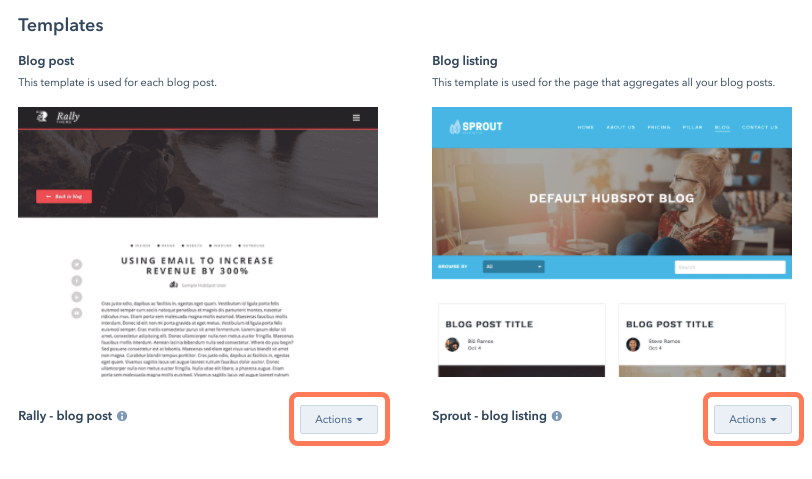
- On the theme selection screen, select your theme, then select a template using that theme. In the bottom right, click Done.

- When you've set the blog post and blog listing page templates, click Save in the bottom left.
Edit theme styling
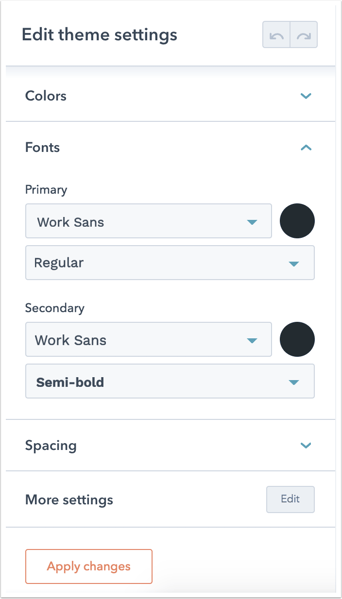
You can customize the styling of your theme - including font, colors, and spacing - in your theme settings. Styles edited here apply to all pages and theme modules included in this theme. Learn more about managing styling in theme settings.
Manage themes
Clone a theme
To edit the coded files of default themes in the design manager, they must first be cloned. Custom themes and themes purchased from the Asset Marketplace can also be cloned, but can also be edited directly.
- In your HubSpot account, navigate to Content > Design Manager.
- In the finder, click the @hubspot folder. This folder contains all themes and default modules, including drag and drop email modules.
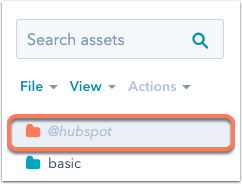
- Right click a theme folder, then select Clone theme.

- In the dialog box, enter a name for the theme, then click Create.
The theme will be copied into the root folder and will be listed in the finder with your other folders.
Copy a theme to another account
You can copy a theme folder from one account to another. You must be a user with Design tools permissions in both accounts.
Please note: theme folders in the @hubspot or @marketplace directories cannot be copied between accounts.
To copy a theme to an account:
- In your HubSpot account, navigate to Content > Design Manager.
- In the finder, hover over the theme folder that you want to copy, then right-click the folder and select Copy to different account.
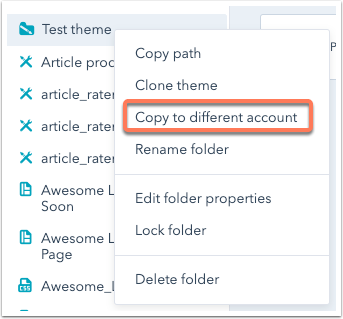
- In the dialog box, select an account, then click Copy asset. The folder will appear in the specified account as soon as the copying process finishes.
Upload a theme
Users in CMS Hub accounts can download HubSpot themes from Envato's ThemeForest Marketplace, then upload them into HubSpot:
- Navigate to the HubSpot CMS Hub section of Envato's ThemeForest Marketplace.
- Purchase and download a theme from the marketplace.
- Double click your download to expand the compressed file. This will create a folder containing your new theme and its documentation.
- In your HubSpot account, click the settings icon in the top navigation bar.
- In the left sidebar menu, navigate to Website > Themes.
- In the top right, click Upload Theme.
- In your computer's files, open the new folder and select your theme.
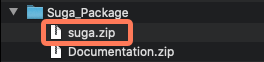
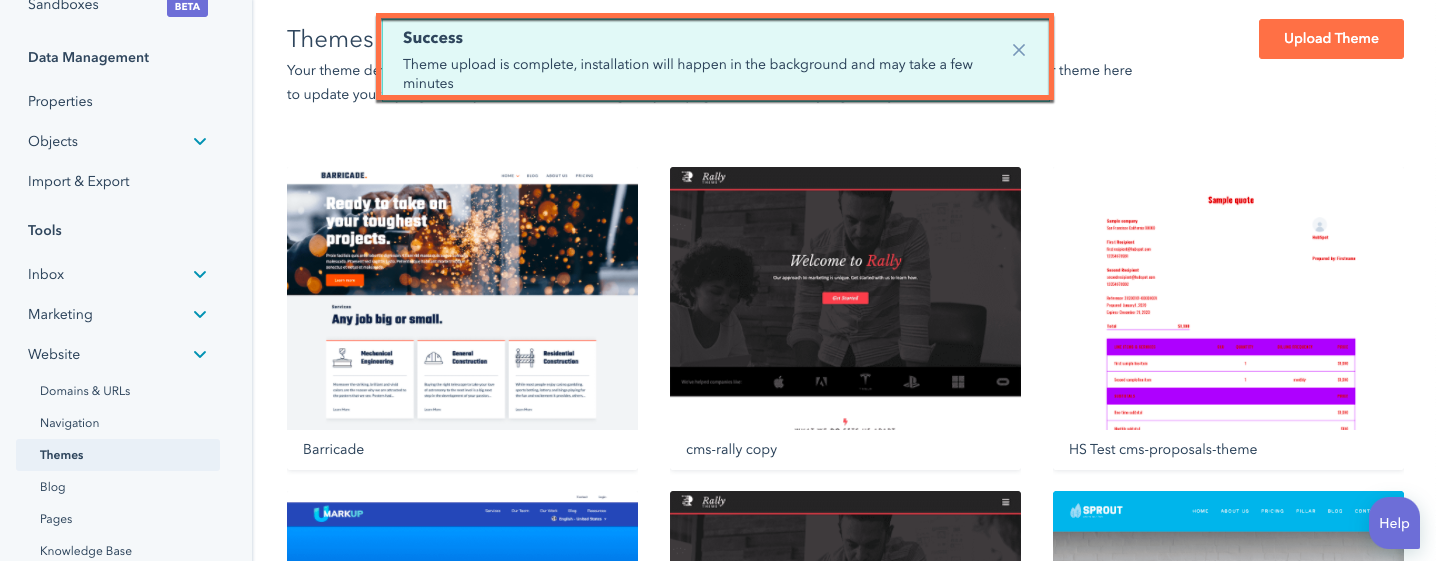
- When your theme has finished uploading, a banner will appear at the top of the page. It may take a few minutes for your theme to be available in HubSpot.
Delete a theme
Default HubSpot themes, cloned themes, and uploaded themes can be deleted from the design manager:
- In your HubSpot account, navigate to Content > Design Manager.
- In the finder, click the folder with the theme's assets.
- Click the File dropdown menu and select Delete [folder name].
- In the dialog box, select the I am sure that I want to delete this folder checkbox, then click Delete this folder.
Purchased themes must be uninstalled from the Asset Marketplace:
- In your HubSpot account, click the Marketplace icon in the top navigation bar, then select Template Marketplace.
- Navigate to the Purchased tab.
- Hover over the theme, then click the Actions dropdown menu and select Uninstall.
- In the dialog box, click Uninstall.