Last updated: April 10, 2025
If you would like to personalize the From name and From address of an email, so the email appears as if it is coming from someone specifically identified in the recipient's contact record, you may take advantage of using your contact properties as personalization tokens in those required fields.
For example, you may want to send an email to contacts as coming from the contact's consultant as Consultant Name and Consultant Email are two custom contact properties you already created in Contacts > Contacts Settings. You will be able to send the email from HubSpot using each of the respective properties as the From Name and From Address.
Follow the steps below to see how to send an email appearing as if the email is coming from a specific person as identified in the recipient's contact record.
Create custom properties to use as personalization tokens in the From Name and From Address in your email
- If you have not already done so, create custom contact properties each for From Name and From Address (ie. Consultant Name, Consultant Email). Be sure the From Address property contains a properly formatted email address as the value in your contact records you wish to send an email to.
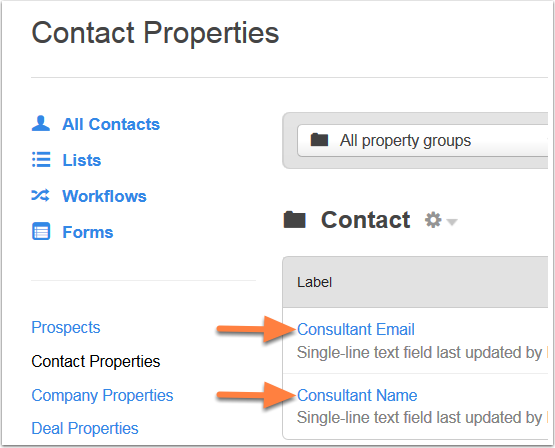
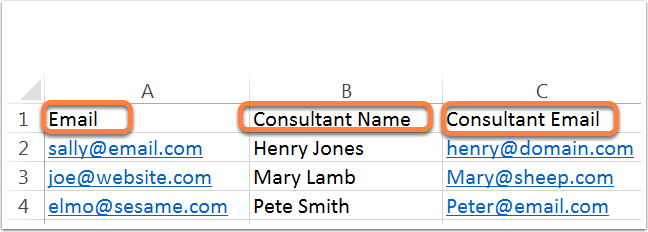
- Once the custom properties are created, be sure your contacts contain values for those properties. If necessary, you may import values into those properties. For existing contacts, your .CSV spreadsheet you plan to import can simply contain a column for Email (the email address of the contact record) and the two columns for the custom properties.
Select the custom properties as personalization tokens in your email draft
- Navigate to Content > Email. Select your email draft or create a new draft
- Locate the Email Details section at the top of the email editor > click Edit Details
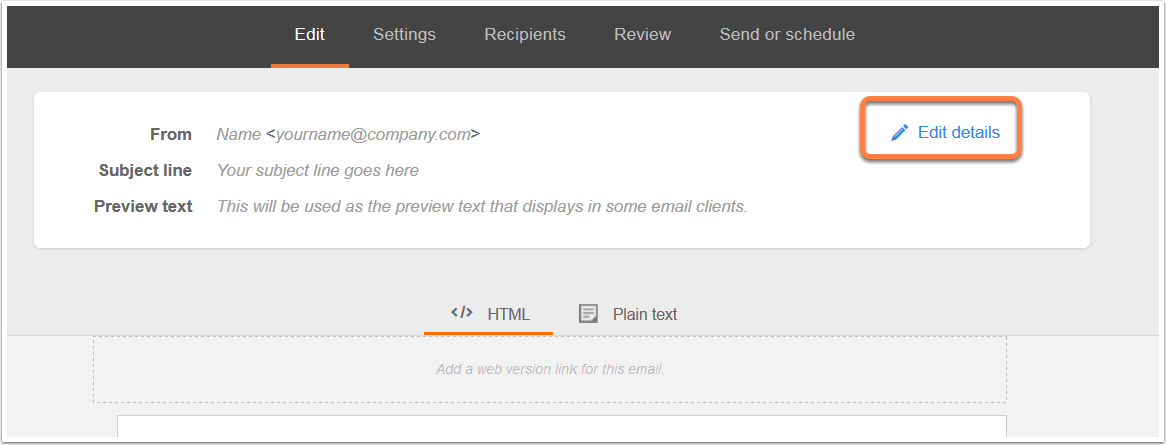
- Here you will see the From name and email address section
- If you are adding a token for the From name, click Add/Manage next to the From name field. If you are adding a token for From address, click Add/Manage next to the From address field.
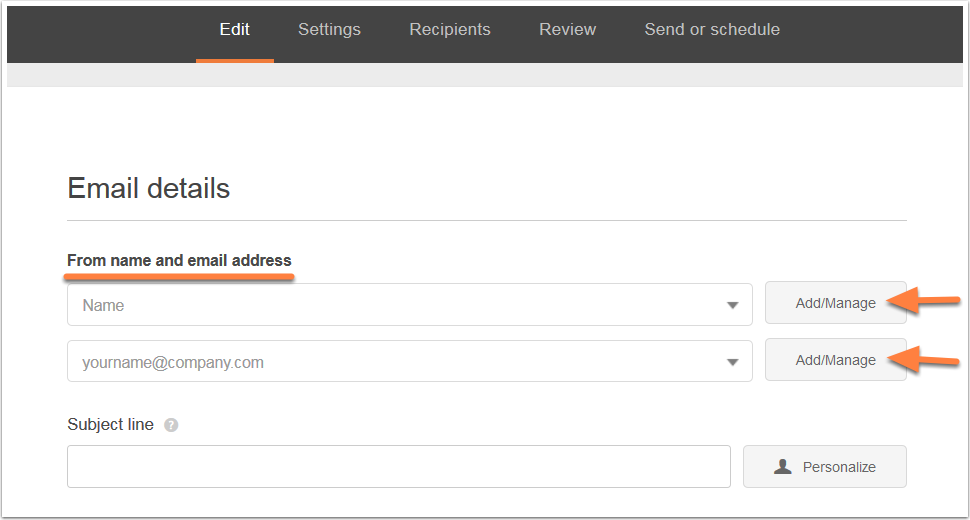
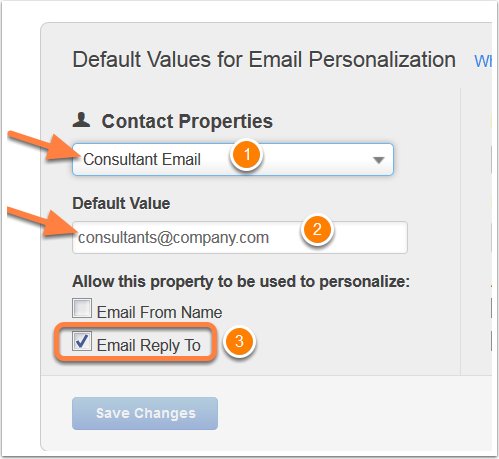
- Once you click Add/Manage, you will need to select the custom property and enter a default value. Here is an example for the From address:
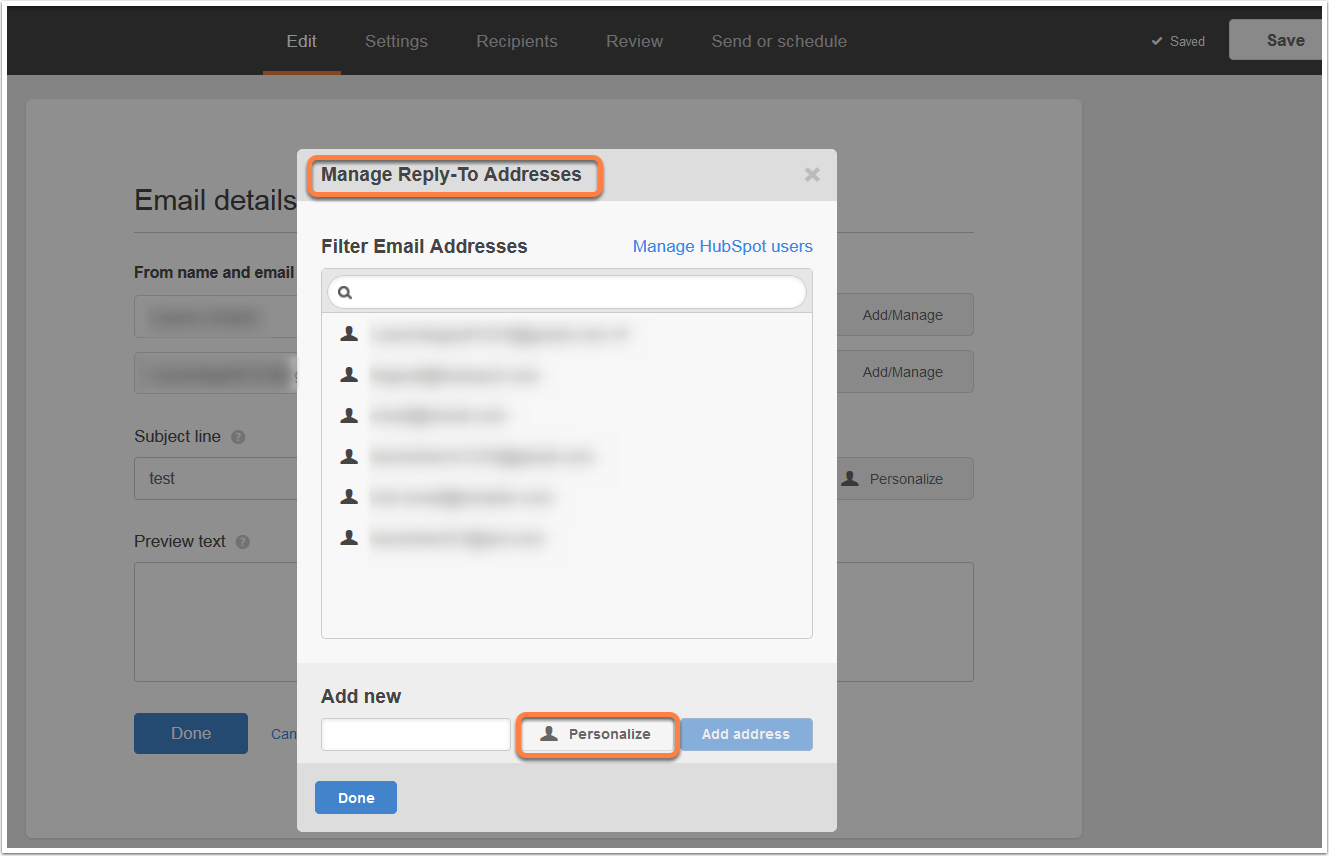
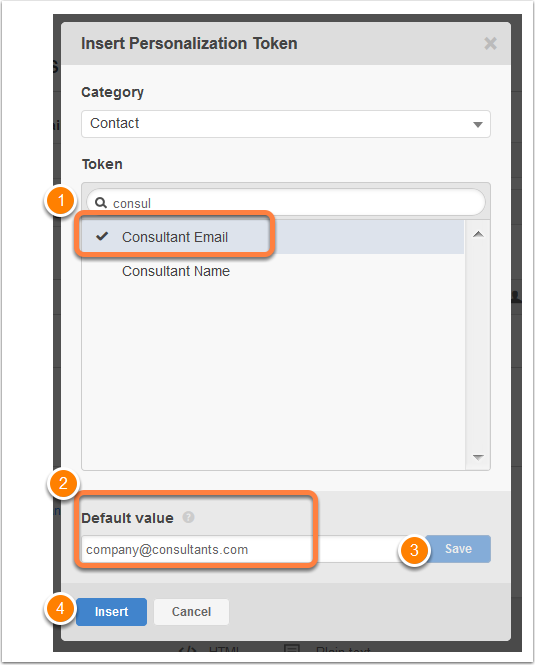
- Add the custom property as an available token to select as the From address
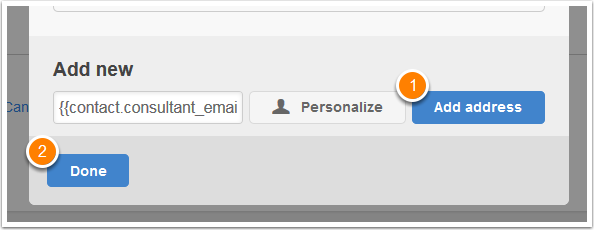
- Select the custom properties as personalization tokens for From name and address
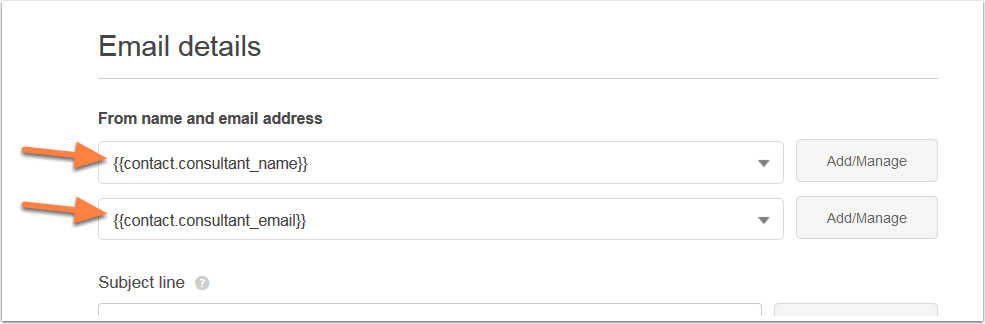
- Alternatively, you can predefine/manage default values for your personalization tokens under Content > Content Settings > Email > Personalize
- Under Allow this property to be used to personalize, check the box next to Email From Name for the custom From name property. Check the box next to Email Reply To for your custom From address property. Note this will only be available if the default value is an email address.
- Click Save Changes