
Last updated: April 10, 2025
- Navigate to Content > Email
- Select Create New Email
- Select the layout, name your email and click Create
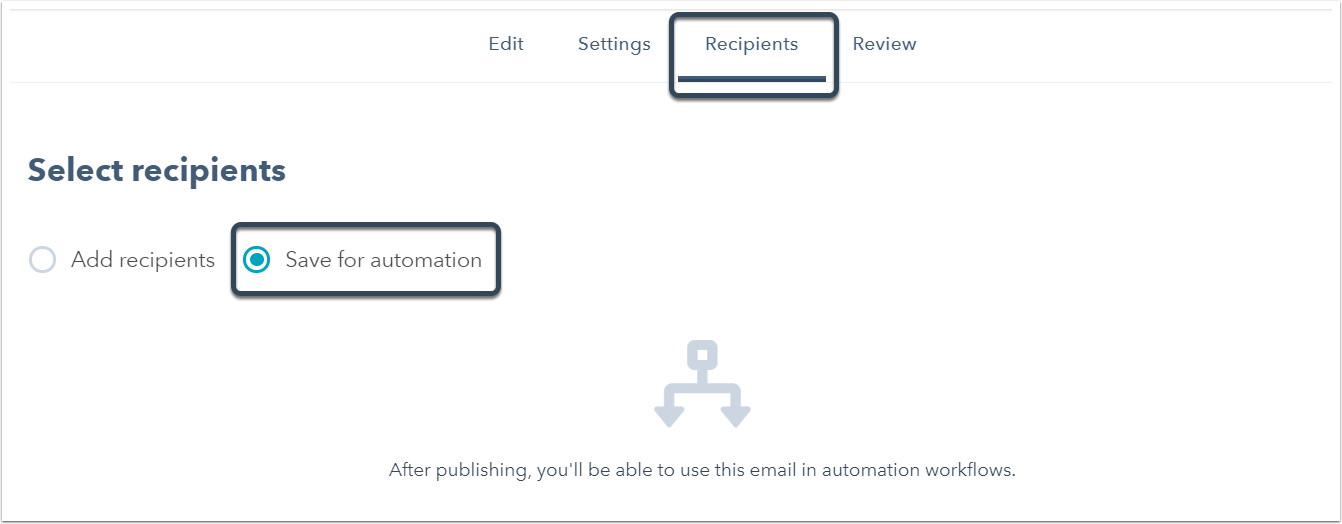
- Select the Recipients tab and choose Save for automation
- Next, navigate to Contacts > Workflows
- Click Create new workflow
- Select a starting condition
- Click Add action or delay
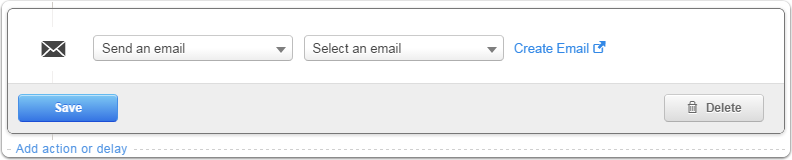
- ChooseSend an email | [select your automated email]
- Save Workflow
- Activate Workflow
You will not see your email show up as an option within your Workflow unless you have selected "Save for automation" under the Recipients tab within your email.