
Last updated: April 10, 2025
Within the SEO tool and on-page SEO tool, HubSpot will scan and suggest SEO recommendations for your content.
These recommendations are prioritized in order of how much impact they'll have on SEO for your site.
Please note: it takes about 30 minutes for changes published to your content to update in your SEO tool recommendations.
Create topic-based content
Search engines review and organize all online content into topics and subtopics. By framing your content around a clearly defined topic or subtopic, search engines can more easily understand what your page is about.
To improve search engines rankings, use keyword phrases directly related to the topic or subtopic you're writing about. Think about including search terms someone might be using if they wanted to learn more about your topic or subtopic.
Please note: by connecting the Google Search Console integration, you can see exactly which search phrases led to views and clicks on your page in Google search results.
If your content is attached to a topic in the SEO tool, the Optimize tool will scan your page for the following:
- Title mentions topic/subtopic phrase: including the topic phrase in the page title helps visitors and search engines understand what your page is about.
- Meta description mentions topic/subtopic phrase: including the topic phrase in the meta description helps visitors and search engines understand what your page is about.
- Page body has topic/subtopic phrases: content attached to a subtopic keyword should feature that phrase and related keywords in the content and meta description.
If your page or blog post is attached to a topic in the SEO tool, you'll see recommended phrases for your page in the Optimize panel within the page editor.

How to organize your content into topics
- Check out this free Academy video lesson about SEO to learn how search engines work and create an SEO strategy.
- Read this blog post to learn how to do your own keyword research.
- Read the documentation to learn how to create topics in the SEO tool in HubSpot.
Write a clear title
Your page title tells search engines about the main idea of your page. The title also appears in bold on a search results page. A clear, descriptive, and compelling title gives you the best chance of being found by your target market.
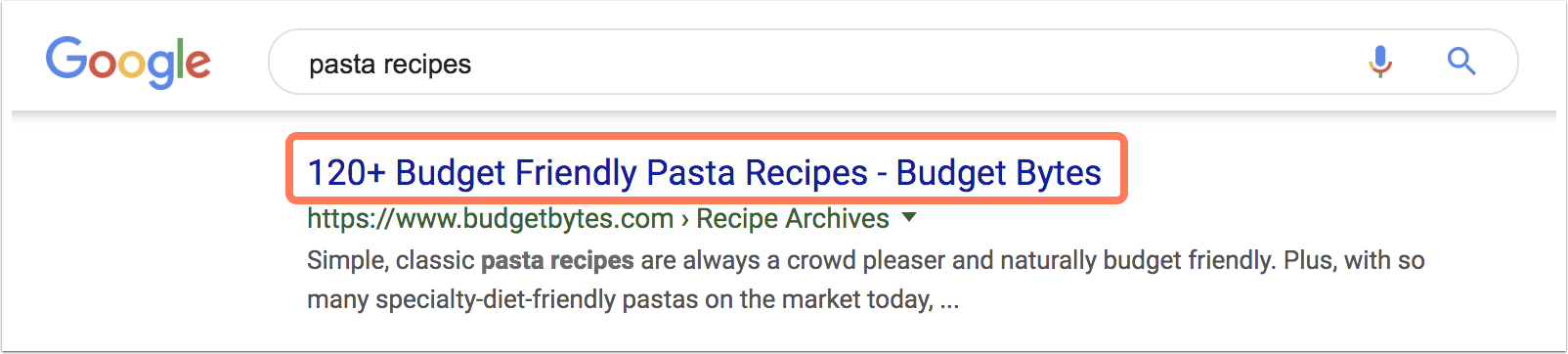
The optimize tool scans your title for the following:
- Page has a title: titles appear in search results, and help search engines know what your page is about.
- Title is 70 characters or less: a title that's less than 70 characters is less likely to get cut off in search results.
- Title and domain name are unique: repeating the domain name in your title makes this content look less trustworthy to search engines and visitors.
How to edit your title
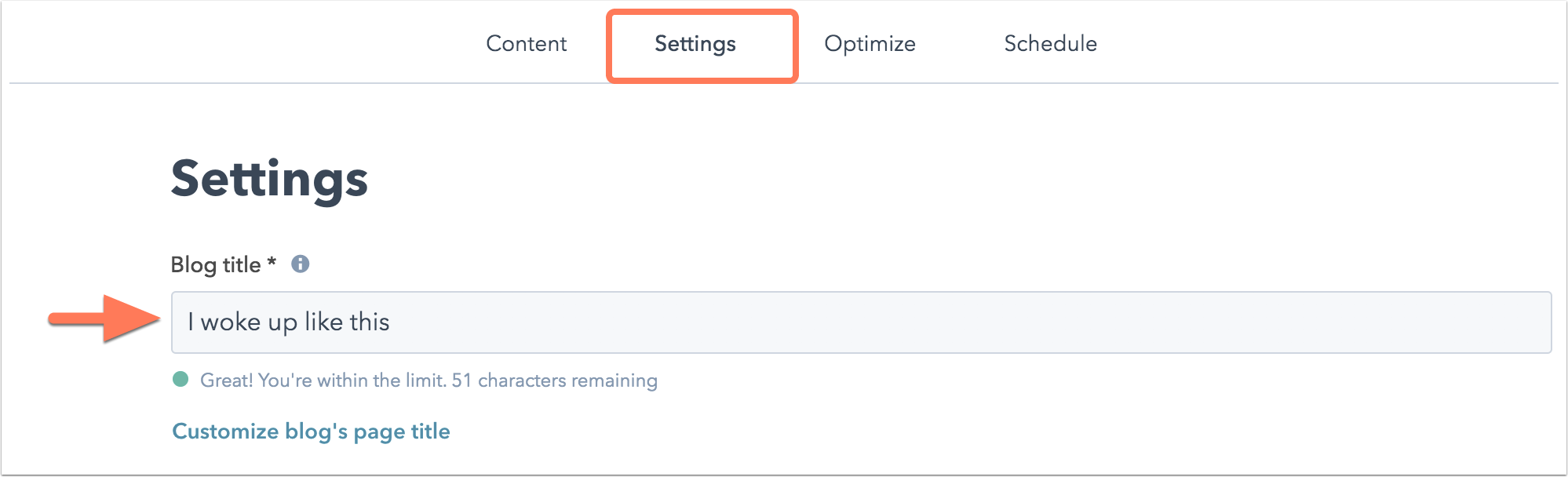
You're required to enter a title when creating a new page in HubSpot. When creating a new blog post, hover over the blog post title module and click the pencil icon to enter a title.
If your page or blog post is missing a title:
- Click the Settings tab at the top of the content editor.
- Enter a title:
- In the blog post editor, enter your title in the Blog title field.
- In the landing page or website page editor, enter your title in the Page title field.
Add meta description
The meta description for your page appears under the page title in search results. Think about your title as the main idea of your page, and the meta description as compelling details about what this page covers. Giving visitors a preview of your content helps them decide whether it's what they're looking for.
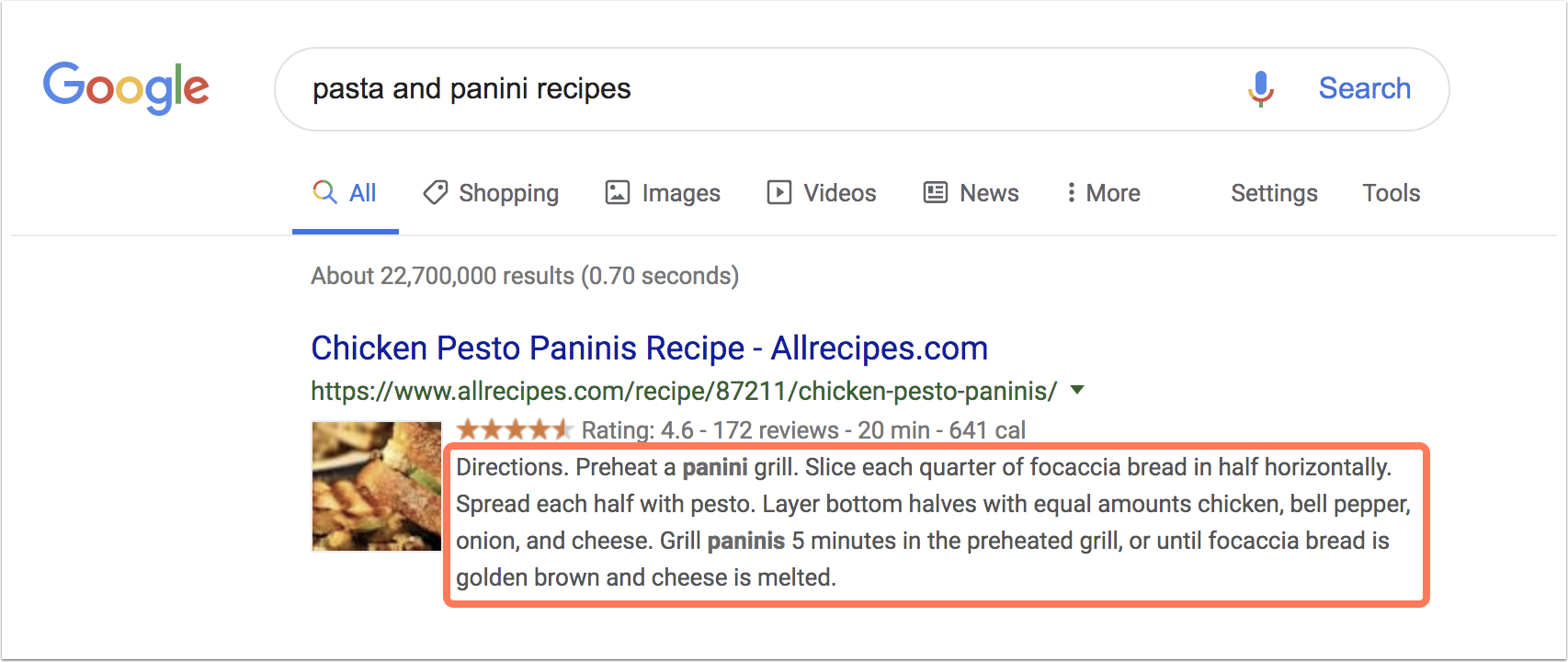
The optimize tools scans your meta description for the following:
- Meta description and title are unique: repeating the title in your meta description looks redundant to visitors, and can appear untrustworthy to search engines.
- Page has a meta description: your meta description appears under the page title in search results.
-
Meta description is 155 characters or less: a meta description that's less than 155 characters is less likely to get cut off on a search results page.
How to edit your meta description
To add or edit a meta description for a page or blog post:
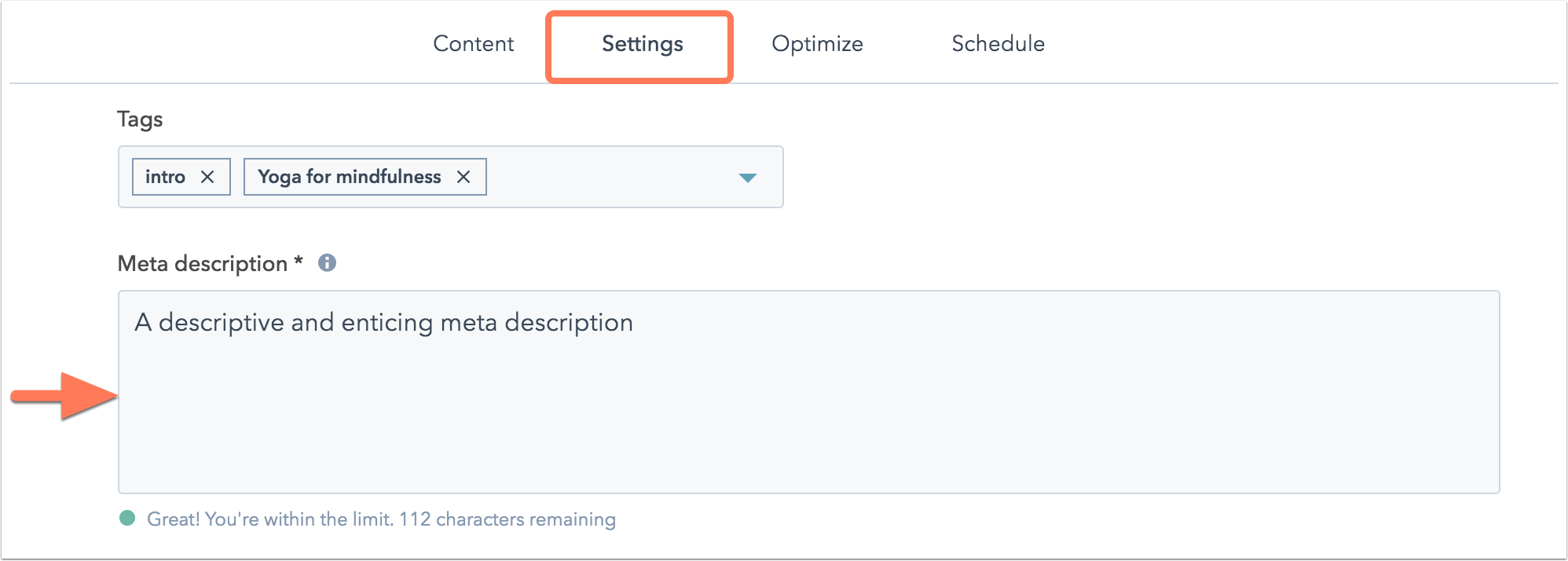
- Click the Settings tab at the top of the content editor.
- Enter your meta description in the Meta description section. The tool keeps track of how many characters are entered here.
Include exactly one H1 tag
Headers on your page tell search engine what main topics are covered in your content. If there isn't an H1 tag, search engines will be missing information about the main theme of your page. Having more than one H1 tag is confusing for search engines, so consider using H2 or H3 tags for subheadings as you write about the main topic of your page.
The optimize tool scans your headings for the following:
- Page has a single H1 tag: your page should have exactly one H1 tag to make it easier for search engines to know what your content is about. More than one H1 tag makes it difficult for search engines to know which one is the most important.
How to fix your H1 tag count
- If you're missing an H1 tag:
- Highlight the text on your page that you want to use.
- In the upper left, click the Style dropdown menu and select H1.
- If you have extra H1 tags:
- Highlight the extra H1 tag on your page.
- In the upper left, click the Style dropdown menu and select H2.
- If you're not sure where the extra H1 tags are coming from:
- Open a preview of your page, or visit the live page.
- Right click on your page content and select Page Source.
- On your keyboard, click Command/Control + F and search for h1. This will highlight all instances of H1 tags on your page.
- Make your edits to the additional H1 tags in the editor or on your template. If your H1 tags are embedded within a rich text module, you may need to access the source code to remove the additional <h1> tags.
Include high quality links
Search engines scan pages for valid links to make sure your content is reliable and up to date. The optimize tool scans your entire page for the number of links, including your navigation menu and page footer.
- Number of links: too many outbound links creates a bad experience for your visitors and may cause search engines to view your page as low-quality or as spam. The optimize tool also calculates the total number of links on your page.
How to fix broken links between your HubSpot-hosted pages
You can identify broken links to and from your HubSpot-hosted pages and blog posts in the page performance details in the Optimization tab.
Please note: for internal links to be detected, they must be hosted on the same subdomain as the page you're analyzing.
- In your HubSpot account, navigate to your blog, landing pages, or website pages.
- Hover over an existing published page or blog post in your dashboard, then and click the name of the page or post.
- Click the Optimization tab.
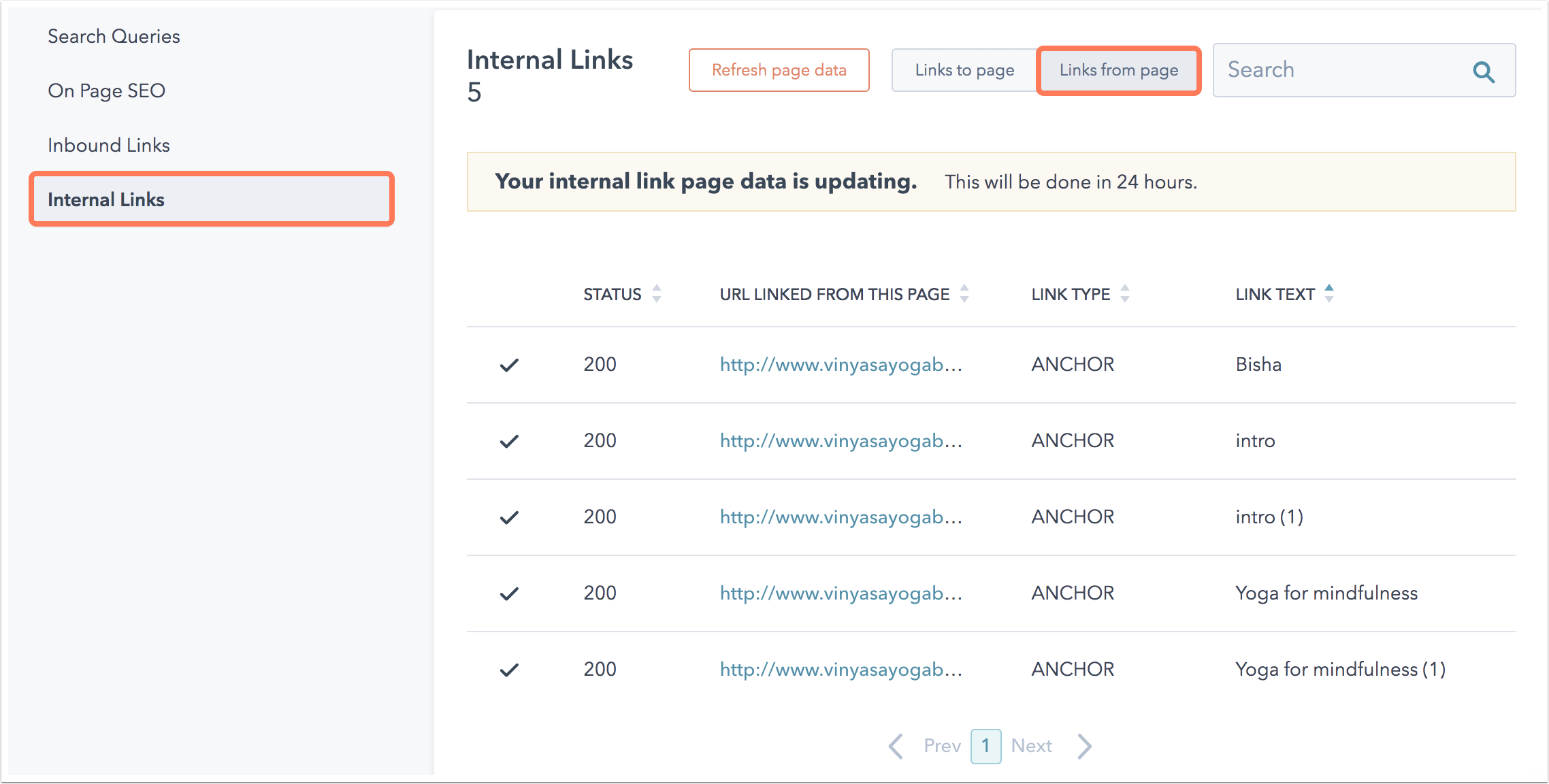
- In the left sidebar menu, click Internal Links. The table displays a list of links to and from the page.
- To find broken links on your page, click Links from page and review the Status column. A red circle with an X will appear in this column if a link is broken. Keep in mind that changes made to the links on your page will take 24 hours to appear here.
Add alt text to images
Search engines can't read images, so image alt text gives search engines a short description of what an image is about. Alt text is also a best practice to make your content accessible for visually impaired visitors using a screen reader to view your website.
Good alt text is less than 125 characters and provides a detailed description of the image. Use natural language to write a clear and understandable phrase, instead of listing lots of keywords. Keep in mind what the text will sound like to a person using a screen reader to view your content. Learn more about how to write good alt text.
The optimize tool will check for alt text on every image on your page. If there's an image detected without alt text, you'll see the image file name listed under your optimization recommendations.
- All images have alt text: alt text helps search engines and visually impaired users understand what your image is about.
How to add alt text
Please note: for alt text to be detected by the optimize tool, it must be within the HTML of the page.
- If you recognize the image by its file name, add alt text to your image.
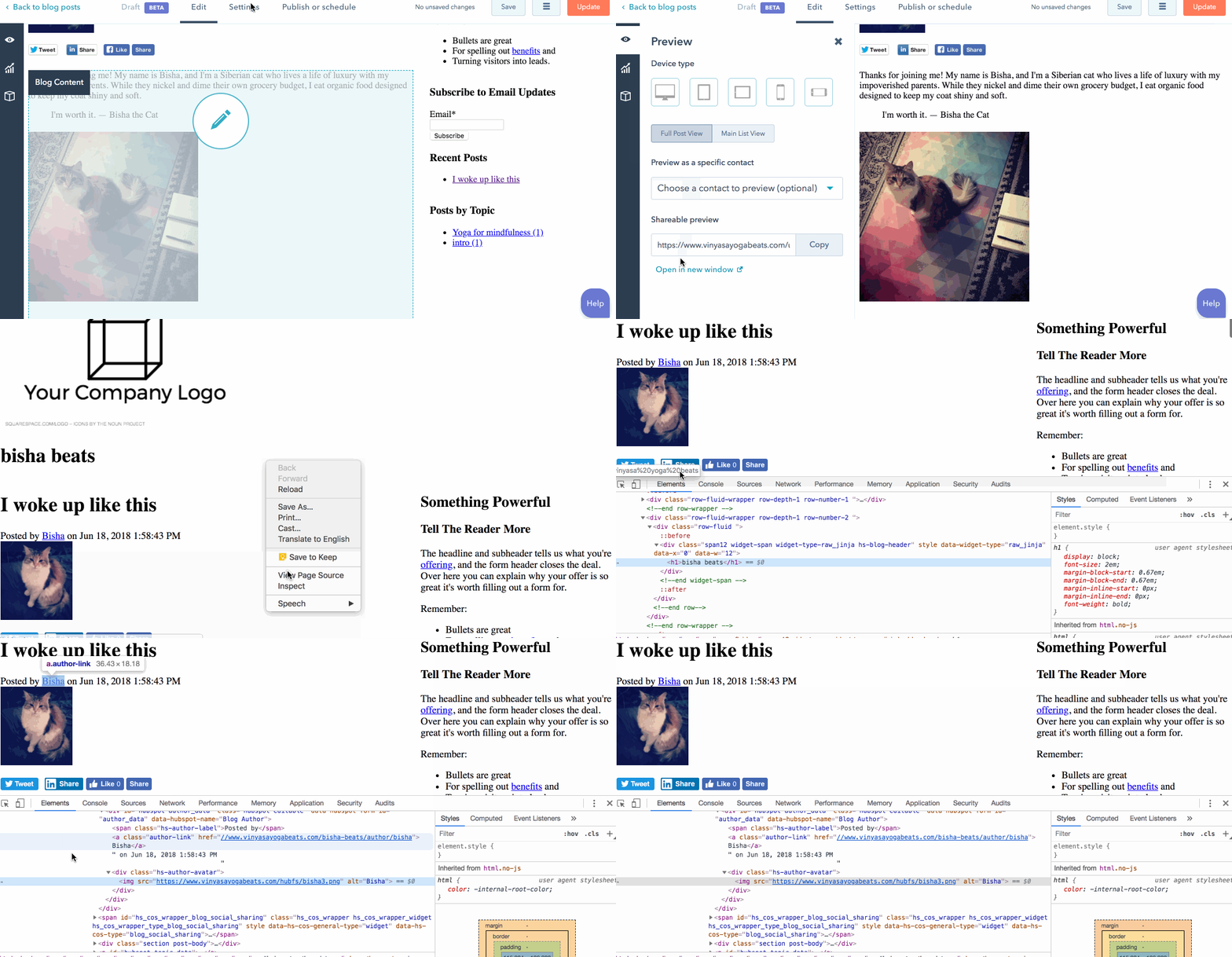
- If you don't recognize the image by its file name, you can open a preview of your page and inspect the page:
- Right click on the page, then select Inspect.
- In the inspector, click the selector icon in the upper left.
- Click directly on the image to see its file name.
- Return to the page editor and add alt text to your image.
- In some cases, the image might not be editable on the page. In this case, navigate to your page template to add alt text to your image in the design manager tool.
- In your template, select the module that contains your image.
- In the inspector on the right, modify the Default content to add your alt text.
- If the tool isn't recognizing the alt text for your image, it's probably because your template contains a custom module. In this case, work with your developer to add the alt text in the source code of the module.
Address pages with duplicate content
Duplicate pages compete for the same search terms, but the pages aren't unique enough for search engines to count them separately. This means the page you want visitors to find might get ignored by Google search. In some cases, duplicate content can result in a penalty from search engines, making both pieces of content less visible.
The SEO Recommendations tool will check your pages for the following:
- Address pages with duplicate content: each page should have at least 85% unique content within the page body.
- Address pages with duplicate title tags: each page on your website should have a unique value for the <title> tag.
- Address pages with duplicate meta description: each page should have unique content in the meta description. Any pages with 100% identical content in the meta description will be flagged for duplicate content.
How to fix duplicate content
There are a few ways to address duplicate content, depending on whether you want to keep both pages live on your website.
- If you see unique value in both pages, customize the content enough so that both pages are optimized for unique subtopic keywords. Then revise your topic in the SEO tool to reflect the additional subtopic keywords you're trying to rank for.
- If both pages are about the exact same topic, it's better for your SEO strategy to either combine the two pages or select one page URL to be the canonical URL.
- To combine your pages, consolidate the content from both pages into one URL. Then redirect the extra page to this URL and unpublish the duplicate content.
- Setting a canonical URL tells search engines which of the pages should be indexed for search results. To set the canonical URL, navigate to the page you want to rank for search results and edit your Advanced options in the page settings. This will resolve the SEO recommendation to address duplicate content.
Optimize blog content length
The optimize tool scans the word count of blog posts only, not pages. The tool counts all words contained in the blog post, including the blog title and author. It's recommended to include at least 300 words as a general rule. Be sure to do your research and determine the best length for the topic you're writing about.
The ideal word count for your content depends on what you're writing about. The most important thing is to consider who audience is and what they need to know about the subject. A great way to determine how long your content should be is to see what pages rank highly in search results for your topic or subtopic phrase today.
- If most content is short and concise, you should aim for a similar length.
- If you find more long form content that goes into great detail, try to do the same thing in your own content.
The SEO tool and the Optimize panel scan your blog content to count the number of words included within the blog post body:
- Page has at least 300 words: pages that rank well in search results give an in-depth answer to visitors' questions. Aim for at least 300 words.
Please note: the optimize tool counts unicode white spaces within the blog-post-wrapper class to detect the number of words in your blog post. This means the count is most accurate for languages using a Latin alphabet. If you notice an unexpected word count, check with your web developer to confirm there aren't any duplicates of your blog post wrapper class within the coded blog post template.
Confirm the correct pages are hidden from search results
If any pages hosted on your domain are blocked from search engines, you'll see a recommendation to review a list of these pages. This is an easy way to make sure there aren't any pages on your website that are blocked from search engine by mistake.
How to fix pages hidden from search results
If all the pages listed are hidden from search results intentionally, no action is needed.
If you see a website page that's hidden from search results that should be indexed for search results, work with your website administrator to update your robots.txt file or remove any tags on the page that might be blocking it from search results.
Make sure each page has a viewport tag
A viewport tag controls the scale of your website content on different device types. If this tag is missing or set up incorrectly, your website appears less mobile-friendly to search engines. This can have a negative impact on your rankings in search results.
How to fix a missing or incorrect viewport tag
Work with your developer to add or edit the viewport tag for your page. If you don't have a developer on your team, you can get advice on the CMS Developers Forum or connect with a Solutions Partner.
Make sure all pages load over a secure connection
If any of your pages are using HTTP you will see the above recommendation. Pages using HTTPS have been a Google ranking factor since 2014. Pages that load over HTTPS also offer a more secure browsing experience for your website visitors.
How to fix pages loading over an insecure connection
Make sure all page resources load over a secure connection
If any of the resources on your pages are loading over an insecure connection, you will see the above recommendation. Loading resources (like images, CSS files, JavaScript files, etc.) over an insecure connection reduces the security of the entire page. It can also result in browsers displaying a mixed content warning or blocking the affected resources.