
Last updated: April 10, 2025
If you would like to add a topic-specific stream of recent blog posts to one of your HubSpot COS pages, you will need to access the page's Template to add a RSS Listing module.
- Navigate to Content > Design Manager, and select the Template in question.
- In the column where your feed should appear on live pages, click the Add Row button. Doing so will add a Rich Text module by default.
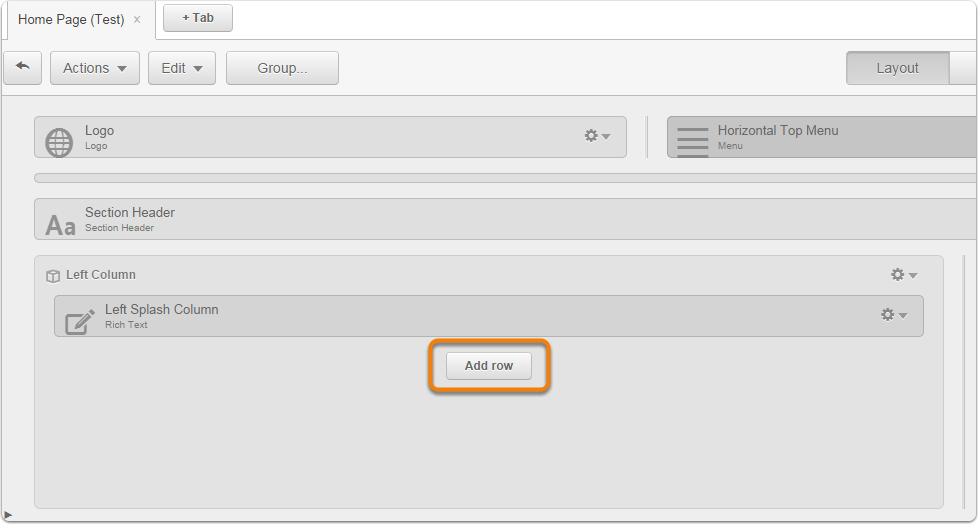
- Click on the Gear Icon within the newly added module, and select Swap Module.
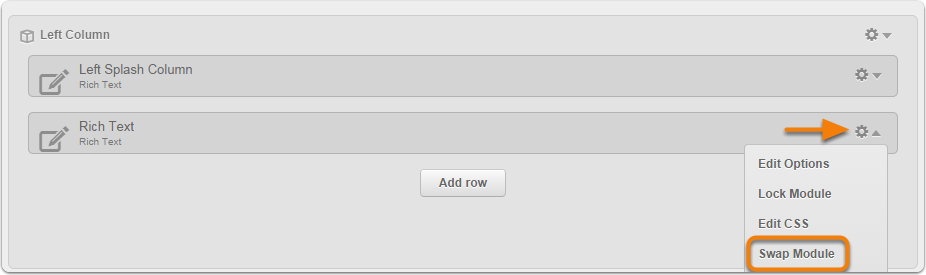
- On the Choose a Module window, select the RSS Listing module and click the blue Select button. This will effectively swap what was a Rich Text module for a RSS Listing module.
- In the newly added RSS Listing module, click on the Gear Icon and select Edit Options.
- Select the options for Use an external RSS feed. Select this option even if it is a HubSpot-hosted blog.
- Type or paste the RSS feed URL of your blog topic. To find the RSS feed topic URL for a HubSpot-hosted blog, use the instructions here.
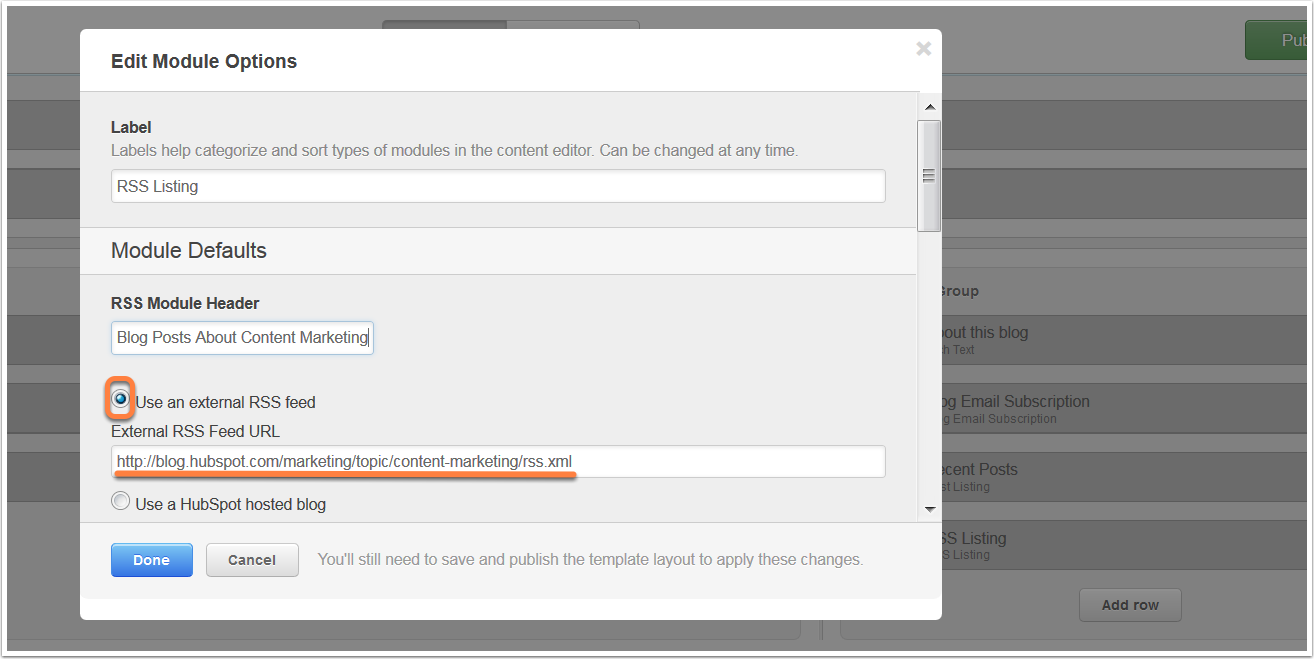
- Edit the other options as you see fit
- Click Done > Publish Changes on the top right of the template.
When finished, the steps above will add a topic-specific stream of relevant blog posts to any page(s) using the template you edited.