
Last updated: April 10, 2025
After you set up predictive lead scoring and it has scored all your contacts successuflly, HubSpot will notify you via email that you can view your new predictive lead scoring information.
You will see that your leads have been broken down into 3 buckets: low lead scores, medium lead scores, and high lead scores.
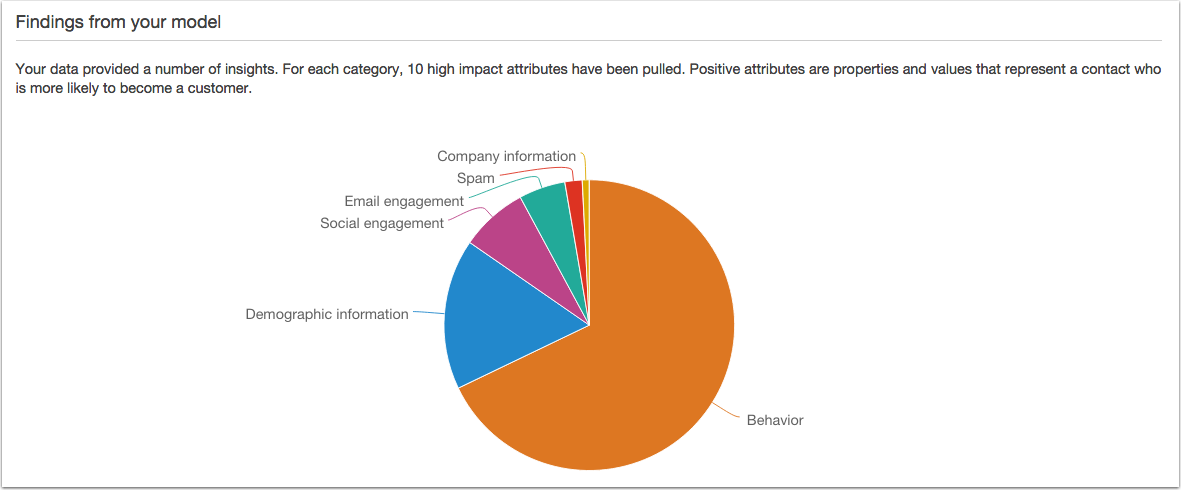
You will then see a pie chart broken up into behavior, company information, spam, email engagement, social engagement, and demographic information. This shows you how much each of the attributes in each category have been weighted.
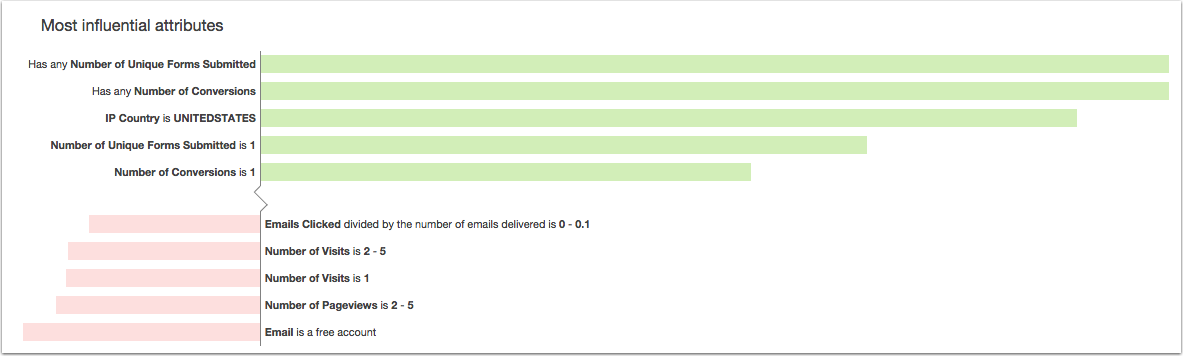
If you take a look below the pie chart, you will see the most influential attributes broken into the top five positive attributes and top five negative attributes.
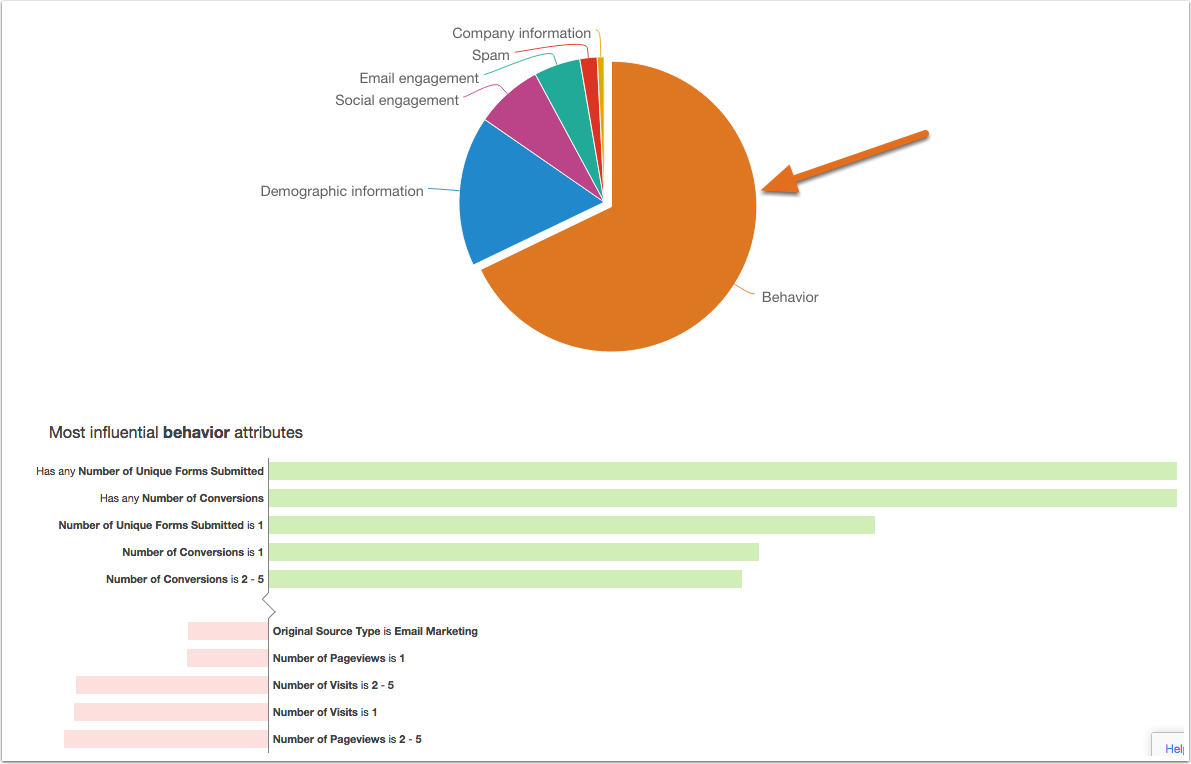
If you click into a piece of the pie, the attributes below will change based on the category you select. For example, if you click into the behavior slice of the pie, you will see the attributes below change to show the top 5 positive and negative behavioral attributes.
If you are using the default model, after 90 days you will see the option to request a new model, and if you meet the guidelines for a custom model, this will be created for you. If you already have a custom model and are interested in requesting an update, please reach out to HubSpot Support. A request can be made once every three months, for a total of four times a year.