
Last updated: April 10, 2025
Instead of writing a blog post in HubSpot, you can import the post's content from a Google Doc in a connected Google account. Google Docs shared with you by other users cannot be used.
- In your HubSpot account, navigate to Content > Blog.
- In the upper right, click Create, then select Blog post.
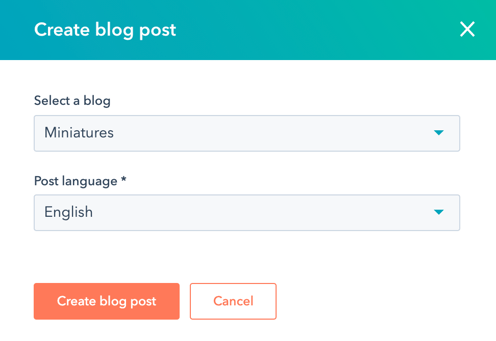
- In the dialog box, click the Select a blog dropdown menu and select a blog, then click Create blog post.
- In the content editor, click the Blog content module.
- In the rich text toolbar, click the Advanced dropdown menu and select Import Google Doc.
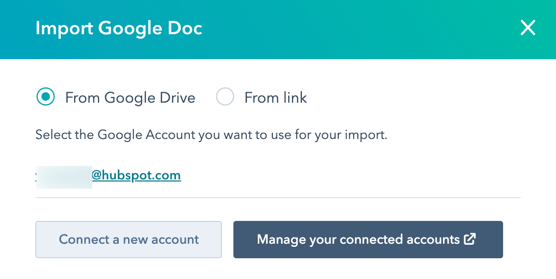
- To select the Google Doc from the files in your Google Drive:
- If your Google account does not appear, click Connect a new account. In the dialog box, click Accept and connect to Google. On the Google authorization page, select a Google account. then click Allow. When you start the import process again, your account should be selectable.
-
- In the Select the Google account you want to use for your import section, click the connected Google account that owns the Google Doc.
- In the dialog box, select a Google Doc, then click Select.
- To import the Google Doc using a link:
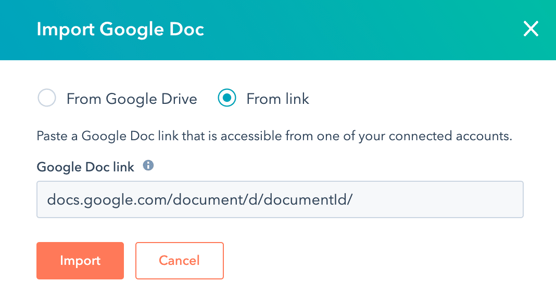
- In the dialog box, select the From link option.
- In the Google Doc link field, paste the URL of your Google Doc. The URL must be formatted like docs.google.com/document/d/documentId/ or drive.google.com/open?id=documentId.
- Click Import.
- In the content editor, use the rich text toolbar to edit the blog post's content and formatting.
- In the top right, click Publish to take the post live.